OneRouter Guide
OneRouter: A Guide With Practical Examples
Date
Dec 21, 2025
Author
Andrew Zheng
Managing multiple AI provider APIs quickly becomes overwhelming. Each provider has different authentication methods, pricing models, and API specifications. Developers waste countless hours switching between OpenAI, Anthropic, Google, and other platforms just to access different models.
OneRouter solves this complexity by providing a unified API that connects you to over 250 models from dozens of providers. You can access GPT-5, Claude 4, Gemini 2.5 Pro, and hundreds of other models using a single API key and consistent interface. The platform handles automatic fallbacks, cost management, and provider routing behind the scenes.
In this tutorial, I explain everything you need to know about OneRouter, from setting up your first API call to implementing advanced features like structured outputs. By the end, you will learn how to build reliable applications that aren’t tied to a single provider.
What Is OneRouter?
OneRouter is a unified API platform that gives you access to over 250 AI models from dozens of providers through a single endpoint. Instead of juggling separate API keys for OpenAI, Anthropic, Google, Meta, and others, you use one key to reach their entire model catalog.
The platform works as an intelligent router, sending your requests to the right provider while taking care of authentication, billing, and error handling. This approach fixes several headaches that come with using multiple AI providers.
Problems OneRouter solves
Working with multiple AI providers gets messy fast. Each one has its own API format, login process, and billing system. You end up maintaining separate code for each service, which slows down development and makes testing new models a pain.
Things get worse when providers go down or hit you with rate limits. Your app breaks, and there’s nothing you can do except wait. Plus, figuring out which provider offers the best price for similar models means tracking costs manually across different platforms.
The biggest issue is getting locked into one provider. When you build everything around their specific API, switching to better models or cheaper options later becomes a major project.
How OneRouter fixes this
OneRouter solves these problems with a set of connected features:
Use one API key to access 250+ models
Enable automatic switching to backup providers when your first choice fails
Side-by-side pricing for all models so you can compare costs instantly
Works with existing OpenAI code — just change the endpoint URL
Real-time monitoring that routes requests to the fastest available provider
These pieces work together to make AI development smoother and more reliable.
Who should use OneRouter?
Different types of users get value from this unified approach:
Developers can try new models without setting up accounts everywhere, making experimentation faster
Enterprise teams get the uptime they need through automatic backups when providers fail
Budget-conscious users can find the cheapest option for their needs without spreadsheet math
Researchers get instant access to cutting-edge models without account setup overhead
Now that you understand what OneRouter brings to the table, let’s get you set up with your first API call.
Prerequisites
Before diving into OneRouter, you’ll need a few things set up on your machine. This tutorial assumes you’re comfortable with basic Python programming and have worked with APIs before. You don’t need to be an expert, but you should understand concepts like making HTTP requests and handling JSON responses.
You’ll need Python 3.7 or later installed on your system. We’ll be using the openai Python package to interact with OneRouter's API, along with python-dotenv to handle environment variables securely. You can install both with:
You’ll also need an OneRouter account and API key. Head to OneRouter to create a free account — you’ll get a small credit allowance to test things out. Once you’re logged in, go to the API Keys section in your account settings and generate a new key.
After getting your API key, create a .env file in your project directory and add your key like this:
This keeps your API key secure and out of your code. If you plan to use OneRouter beyond testing, you’ll need to add credits to your account through the Credits page.
With these basics in place, you’re ready to make your first API call through OneRouter.
Making Your First API Call in OneRouter
Getting started with OneRouter is remarkably simple if you’ve used the OpenAI SDK before. You just change one line of code and suddenly have access to hundreds of models from different providers.
Your first request and setup
Let’s jump right in with a working example that demonstrates OneRouter’s approach:
import os
from openai import OpenAI
from dotenv import load_dotenv

load_dotenv()

client = OpenAI(
   base_url="https://llm.onerouter.pro/v1",
   api_key=os.getenv("ONEROUTER_API_KEY"),
)

response = client.chat.completions.create(
   model="google-ai-studio/gemini-2.5-flash-preview-09-2025",
   messages=[
       {
           "role": "user",
           "content": "Write a haiku about debugging code at 2 AM"
       }
   ]
)

print(response.choices[0].message.content)
Night hum, coffee cooled
cursor blinks, bug hides somewhere
I chase ghosts 'til dawn
The magic happens in two places.
First, the
base_urlparameter redirects your requests to OneRouter's servers instead of Google's.Second, the model name follows a
provider/model-nameformat -google-ai-studio/gemini-2.5-flash-preview-09-2025instead of justgemini-2.5-flash-preview-09-2025. This tells OneRouter which provider's version you want while keeping the familiar interface.
Now that you’ve seen how easy it is to work with different models, you might be wondering: what happens when your chosen model is unavailable? How do you build applications that stay reliable even when providers face issues? That’s where OneRouter’s routing and resilience features come in.
Model Routing For Resilience
Building reliable AI applications means preparing for the unexpected. Providers experience downtime, models hit rate limits, and sometimes content moderation blocks your requests. Model routing is OneRouter’s solution — it automatically switches between different models to keep your application running smoothly.
Setting up manual fallbacks
The most straightforward way to add resilience is to specify backup models. When your primary choice fails, OneRouter tries your alternatives in order.
{
  "model": "gemini-2.5-flash",
  "fallback_models": ["gemini-2.5-flash", "grok-4-fast-non-reasoning", "qwen3-next-80b-a3b-instruct"],
  "fallback_rules": "auto"  // default value is "auto"
  ... // Other params
}
OneRouter tries gemini-2.5-flash first. If it’s unavailable, rate-limited, or blocked, it automatically tries grok-4-fast-non-reasoning, then qwen3-next-80b-a3b-instruct. The response.model field shows which model actually responded.
Building effective fallback strategies
Not all models make good backups for each other. Provider downtime may affect all models from that company, so choose fallbacks from different providers. Rate limits and costs vary dramatically, so pair expensive models with cheaper alternatives as well:
# Good fallback chain: different providers, decreasing cost
response = client.chat.completions.create(
   model="anthropic/claude-sonnet-4",
   messages=[
       {"role": "user", "content": "Your prompt here"}
   ],
   extra_body={
       "models": [
           "x-ai/grok-4",                  # Close performance
           "moonshotai/kimi-k2",           # Cheaper
       ]
   }
)
This gives you premium quality when available, solid performance as backup, and guaranteed availability as a last resort. Content moderation policies also differ between providers, so diversifying your chain gives better coverage for sensitive topics.
Finding models for your fallback chain
The models page lets you filter by provider and capabilities to build your chain. Many powerful models like DeepSeek R1 and Kimi-K2 are very cheap since they’re open-source, making excellent fallbacks.
For dynamic applications, you can discover models programmatically:
def get_provider_models(api_key: str, provider: str) -> list[str]:
   r = requests.get(
       "https://llm.onerouter.pro/v1/models",
       headers={"Authorization": f"Bearer {api_key}"}
   )
   return [m["id"] for m in r.json()["data"] if m["id"].startswith(provider)]

# Build fallbacks across providers
openai_models = get_provider_models(api_key, "openai/")
anthropic_models = get_provider_models(api_key, "anthropic/")
This approach lets you build robust fallback chains that adapt as new models become available.
Streaming For Real-time Responses
When working with AI models, especially for longer responses, users expect to see output appear progressively rather than waiting for the complete response. Streaming solves this by sending response chunks as they’re generated, creating a more interactive experience similar to ChatGPT’s interface.
Basic streaming setup
To set up streaming in OneRouter, add stream=True to your request. The response becomes an iterator that yields chunks as the model generates them:
response = client.chat.completions.create(
   model="openai/gpt-5",
   messages=[
       {"role": "user", "content": "Write a detailed explanation of how neural networks learn"}
   ],
   stream=True
)

for chunk in response:
   if chunk.choices[0].delta.content is not None:
       print(chunk.choices[0].delta.content, end="")
Each chunk contains a small piece of the response. The delta.content field holds the new text fragment, and we print it immediately without a newline to create the streaming effect. The end="" parameter prevents print from adding newlines between chunks.
Building a better streaming handler
For production applications, you’ll want more control over the streaming process. Here’s a more comprehensive handler that manages the complete response:
def stream_response(model, messages, show_progress=True):
   response = client.chat.completions.create(
       model=model,
       messages=messages,
       stream=True
   )

   complete_response = ""

   for chunk in response:
       if chunk.choices[0].delta.content is not None:
           content = chunk.choices[0].delta.content
           complete_response += content

           if show_progress:
               print(content, end="", flush=True)

   if show_progress:
       print()  # Add final newline

   return complete_response

# Use it with different models
result = stream_response(
   "anthropic/claude-sonnet-4",
   [{"role": "user", "content": "Explain quantum entanglement like I'm 12 years old"}]
)Powered By
This handler captures the complete response while displaying progress, gives you both the streaming experience and the final text, and includes proper output formatting.
Streaming changes the user experience from “waiting and hoping” to “watching progress happen.” This makes your AI applications feel much more responsive and engaging for users.
Handling Reasoning Tokens In OneRouter
Some AI models can show you their “thinking” process before giving their final answer. These reasoning tokens provide a transparent look into how the model approaches complex problems, showing the step-by-step logic that leads to their conclusions. Understanding this internal reasoning can help you verify answers, debug model behavior, and build more trustworthy applications.
What are reasoning tokens?
Reasoning tokens appear in a separate reasoning_content field in the response, distinct from the main content. Different models support reasoning in different ways—some use effort levels while others use token budgets.
Here’s a simple example that shows reasoning in action:
from openai import OpenAI

client = OpenAI(
    base_url="https://llm.onerouter.pro/v1",
    api_key="<<API_KEY_REF>>",
)

response = client.chat.completions.create(
    model="<<MODEL>>",
    messages=[
        {"role": "user", "content": "How would you build the world's tallest skyscraper?"}
    ],
    extra_body={
        "reasoning": {
            "effort": "high",
            "max_tokens": 2000
        }
    },
)

print("Final answer:")
print(response.choices[0].message.content)
print("\nReasoning process:")
print(response.choices[0].message.reasoning_content)
Final answer:
To count the 'r's in 'strrawberry', I'll go through each letter:
...
There are **4**
The model will show both its final answer and the internal reasoning that led to that conclusion. This dual output helps you understand whether the model approached the problem correctly.
Controlling reasoning intensity
You can control how much reasoning effort models put into their responses using two approaches. The effort parameter works with models like OpenAI's o-series and uses levels that correspond to specific token percentages based on your max_tokens setting:
"effort": "xhigh"- Allocates the largest portion of tokens for reasoning (approximately 95% of max_tokens)"effort": "high"- Allocates a large portion of tokens for reasoning (approximately 80% of max_tokens)"effort": "medium"- Allocates a moderate portion of tokens (approximately 50% of max_tokens)"effort": "low"- Allocates a smaller portion of tokens (approximately 20% of max_tokens)"effort": "minimal"- Allocates an even smaller portion of tokens (approximately 10% of max_tokens)"effort": "none"- Disables reasoning entirely
For models that support direct token allocation, like Anthropic’s models, you can specify exact reasoning budgets:
def get_reasoning_response(question, reasoning_budget=2000):
   response = client.chat.completions.create(
       model="anthropic/claude-sonnet-4",
       messages=[{"role": "user", "content": question}],
       max_tokens=10000,
       extra_body={
           "reasoning": {
               "max_tokens": reasoning_budget  # Exact token allocation
           }
       }
   )
   return response

# Compare different reasoning budgets
response = get_reasoning_response(
   "What's bigger: 9.9 or 9.11? Explain your reasoning carefully.",
   reasoning_budget=3000
)

print("Answer:", response.choices[0].message.content)
print("Detailed reasoning:", response.choices[0].message.reasoning_content)
Higher token budgets generally produce more thorough reasoning, while lower budgets give quicker but less detailed thought processes.
Preserving reasoning in conversations
When building multi-turn conversations, you need to preserve both the reasoning and the final answer to maintain context. This is particularly important for complex discussions where the model’s thinking process informs subsequent responses:
# First message with reasoning
response = client.chat.completions.create(
   model="anthropic/claude-sonnet-4",
   messages=[
       {"role": "user", "content": "Should I invest in renewable energy stocks? Consider both risks and opportunities."}
   ],
   extra_body={
       "reasoning": {
           "max_tokens": 3000
       }
   }
)

# Build conversation history with reasoning preserved
messages = [
   {"role": "user", "content": "Should I invest in renewable energy stocks? Consider both risks and opportunities."},
   {
       "role": "assistant",
       "content": response.choices[0].message.content,
       "reasoning_details": response.choices[0].message.reasoning_content  # Preserve reasoning
   },
   {"role": "user", "content": "What about solar energy specifically? How does that change your analysis?"}
]

# Continue conversation with reasoning context
follow_up = client.chat.completions.create(
   model="anthropic/claude-sonnet-4",
   messages=messages,
   extra_body={
       "reasoning": {
           "max_tokens": 2000
       }
   }
)

print("Follow-up answer:")
print(follow_up.choices[0].message.content)
print("\nContinued reasoning:")
print(follow_up.choices[0].message.reasoning_content)
The reasoning_content field keeps the complete reasoning chain, allowing the model to build on its previous analysis when answering follow-up questions. This creates more coherent and contextually aware conversations.
Cost and billing considerations
Reasoning tokens are billed as output tokens, so they increase your usage costs. However, they often improve response quality enough to justify the expense, especially for complex tasks where accuracy matters more than speed. According to OneRouter’s documentation, reasoning tokens can improve model performance on challenging problems while providing transparency into the decision process.
For cost-conscious applications, you can balance reasoning quality against expense by adjusting effort levels or token budgets based on task complexity. Simple questions might not need reasoning at all, while complex problems benefit from high-effort reasoning.
Working With Multimodal Models on OneRouter
You’ve been working with text so far, but what happens when you need to analyze images or documents? Maybe you want to ask questions about a chart, extract information from a PDF, or describe what’s happening in a photo. That’s where multimodal models come in — they can understand both text and visual content in the same request.
Understanding multimodal capabilities
Instead of trying to describe an image in text, you can send the actual image and ask questions about it directly. This makes your applications way more intuitive since the model sees exactly what you’re working with. You don’t have to guess whether your text description captured all the important details.
You use multimodal models through the same interface you’ve been using, just with an extra file object to include your visual content. File objects work with all models on OneRouter.
Working with images
You can include images in your requests through URLs or base64 encoding. If your image is already online, the URL approach is simpler:
import requests
import json

url = "https://llm.onerouter.pro/v1/chat/completions"
headers = {
    "Authorization": f"Bearer {API_KEY}",
    "Content-Type": "application/json"
}

messages = [
    {
        "role": "user",
        "content": [
            {
                "type": "text",
                "text": "What's in this image?"
            },
            {
                "type": "image_url",
                "image_url": {
                    "url": "https://upload.wikimedia.org/wikipedia/commons/thumb/d/dd/Gfp-wisconsin-madison-the-nature-boardwalk.jpg/2560px-Gfp-wisconsin-madison-the-nature-boardwalk.jpg"
                }
            }
        ]
    }
]

payload = {
    "model": "{{MODEL}}",
    "messages": messages
}

response = requests.post(url, headers=headers, json=payload)
print(response.json()["choices"][0]["message"]["content"])
For local images, you can use base64 encoding:
import requests
import json
import base64
from pathlib import Path

def encode_image_to_base64(image_path):
    with open(image_path, "rb") as image_file:
        return base64.b64encode(image_file.read()).decode('utf-8')

url = "https://llm.onerouter.pro/v1/chat/completions"
headers = {
    "Authorization": f"Bearer {API_KEY}",
    "Content-Type": "application/json"
}

# Read and encode the image
image_path = "path/to/your/image.jpg"
base64_image = encode_image_to_base64(image_path)
data_url = f"data:image/jpeg;base64,{base64_image}"

messages = [
    {
        "role": "user",
        "content": [
            {
                "type": "text",
                "text": "What's in this image?"
            },
            {
                "type": "image_url",
                "image_url": {
                    "url": data_url
                }
            }
        ]
    }
]

payload = {
    "model": "{{MODEL}}",
    "messages": messages
}

response = requests.post(url, headers=headers, json=payload)
print(response.json()["choices"][0]["message"]["content"])
The model will look at the actual image and give you specific insights about what it sees, not just generic responses.
Processing PDF documents
PDF processing works the same way but opens up document analysis. You can ask questions about reports, analyze forms, or pull information from complex documents:
import requests
import json

url = "https://llm.onerouter.pro/api/v1/chat/completions"
headers = {
    "Authorization": f"Bearer {API_KEY}",
    "Content-Type": "application/json"
}

messages = [
    {
        "role": "user",
        "content": [
            {
                "type": "text",
                "text": "What are the main points in this document?"
            },
            {
                "type": "file",
                "file": {
                    "filename": "document.pdf",
                    "file_data": "https://domain.org/file.pdf"
                }
            },
        ]
    }
]

payload = {
    "model": "{{MODEL}}",
    "messages": messages
}

response = requests.post(url, headers=headers, json=payload)
print(response.json())
This works great for financial reports, academic papers, contracts, or any PDF where you need AI analysis of the actual content. You can also include multiple attachments in a single request if you need to compare images or analyze multiple documents together.
Cost and model selection
Multimodal requests cost more than text-only requests since you’re processing additional data types. Images and PDFs need more computational power, which shows up in the pricing. You can check each model’s specific multimodal pricing on the models page.
Different models have different strengths with visual content. Some are better at detailed image analysis, while others excel at document understanding. You’ll want to experiment with different models to find what works best for your specific needs and budget.
Using Structured Outputs
When you’re building real applications, you need predictable data formats that your code can reliably parse. Free-form text responses are great for chat interfaces, but terrible for applications that need to extract specific information. Instead of getting back unpredictable text that you have to parse with regex or hope the model formatted correctly, structured outputs force models to return guaranteed JSON with the exact fields and data types you need. This eliminates parsing errors and makes your application code much simpler.
Anatomy of structured output requests
Structured outputs use a response_format parameter with this basic structure:
"response_format": {
   "type": "json_schema",           # Always this for structured outputs
   "json_schema": {
       "name": "your_schema_name",  # Name for your schema
       "strict": True,              # Enforce strict compliance
       "schema": {
           # Your actual JSON schema definition goes here
       }
   }
}
Sentiment analysis example
Let’s walk through a complete example that extracts sentiment from text. This shows how structured outputs work in practice:
response = client.chat.completions.create(
   model="openai/gpt-5-mini",
   messages=[
       {"role": "user", "content": "Analyze the sentiment: 'This movie was absolutely terrible!'"}
   ],
   extra_body={
       "response_format": {
           "type": "json_schema",
           "json_schema": {
               "name": "sentiment_analysis",
               "strict": True,
               "schema": {
                   "type": "object",
                   "properties": {
                       "sentiment": {"type": "string", "enum": ["positive", "negative", "neutral"]},
                       "confidence": {"type": "number"}
                   },
                   "required": ["sentiment", "confidence"]
               }
           }
       }
   }
)

import json
result = json.loads(response.choices[0].message.content)
print(result)Powered By
Here’s what’s happening in this schema:
sentiment: A string field restricted to three specific values usingenum. The model can't return anything outside of "positive", "negative", or "neutral"confidence: A number field for the model's confidence scorerequired: Both fields must be present in the response - the model can't skip themstrict: True: Enforces rigid compliance with the schema structure
Without structured outputs, you might get responses like “The sentiment is very negative with high confidence” or “Negative (95% sure)”. With the schema, you always get parseable JSON you can immediately use in your code.
Setting strict: True enforces the schema rigorously—the model can't deviate from your structure. The required array specifies which fields must be present. You can use enum to restrict values to specific choices, array for lists, and nested object types for complex data.
Conclusion
We’ve learned how to access hundreds of AI models through OneRouter’s unified API, from making your first request to implementing features like streaming, reasoning tokens, and structured outputs.
The platform’s automatic fallbacks and model routing mean your applications stay reliable even when individual providers face issues. With the same code patterns, we can compare models, switch providers, and find the perfect fit for each task without managing multiple API keys.
Start experimenting with simple requests and gradually try more features as your needs grow. Test different models for different types of tasks — some work better for creative writing, while others are stronger at data analysis or reasoning problems.
The knowledge you’ve gained here gives you what you need to build AI applications that aren’t locked into any single provider, giving you the freedom to adapt as new models and capabilities become available.
Managing multiple AI provider APIs quickly becomes overwhelming. Each provider has different authentication methods, pricing models, and API specifications. Developers waste countless hours switching between OpenAI, Anthropic, Google, and other platforms just to access different models.
OneRouter solves this complexity by providing a unified API that connects you to over 250 models from dozens of providers. You can access GPT-5, Claude 4, Gemini 2.5 Pro, and hundreds of other models using a single API key and consistent interface. The platform handles automatic fallbacks, cost management, and provider routing behind the scenes.
In this tutorial, I explain everything you need to know about OneRouter, from setting up your first API call to implementing advanced features like structured outputs. By the end, you will learn how to build reliable applications that aren’t tied to a single provider.
What Is OneRouter?
OneRouter is a unified API platform that gives you access to over 250 AI models from dozens of providers through a single endpoint. Instead of juggling separate API keys for OpenAI, Anthropic, Google, Meta, and others, you use one key to reach their entire model catalog.
The platform works as an intelligent router, sending your requests to the right provider while taking care of authentication, billing, and error handling. This approach fixes several headaches that come with using multiple AI providers.
Problems OneRouter solves
Working with multiple AI providers gets messy fast. Each one has its own API format, login process, and billing system. You end up maintaining separate code for each service, which slows down development and makes testing new models a pain.
Things get worse when providers go down or hit you with rate limits. Your app breaks, and there’s nothing you can do except wait. Plus, figuring out which provider offers the best price for similar models means tracking costs manually across different platforms.
The biggest issue is getting locked into one provider. When you build everything around their specific API, switching to better models or cheaper options later becomes a major project.
How OneRouter fixes this
OneRouter solves these problems with a set of connected features:
Use one API key to access 250+ models
Enable automatic switching to backup providers when your first choice fails
Side-by-side pricing for all models so you can compare costs instantly
Works with existing OpenAI code — just change the endpoint URL
Real-time monitoring that routes requests to the fastest available provider
These pieces work together to make AI development smoother and more reliable.
Who should use OneRouter?
Different types of users get value from this unified approach:
Developers can try new models without setting up accounts everywhere, making experimentation faster
Enterprise teams get the uptime they need through automatic backups when providers fail
Budget-conscious users can find the cheapest option for their needs without spreadsheet math
Researchers get instant access to cutting-edge models without account setup overhead
Now that you understand what OneRouter brings to the table, let’s get you set up with your first API call.
Prerequisites
Before diving into OneRouter, you’ll need a few things set up on your machine. This tutorial assumes you’re comfortable with basic Python programming and have worked with APIs before. You don’t need to be an expert, but you should understand concepts like making HTTP requests and handling JSON responses.
You’ll need Python 3.7 or later installed on your system. We’ll be using the openai Python package to interact with OneRouter's API, along with python-dotenv to handle environment variables securely. You can install both with:
You’ll also need an OneRouter account and API key. Head to OneRouter to create a free account — you’ll get a small credit allowance to test things out. Once you’re logged in, go to the API Keys section in your account settings and generate a new key.
After getting your API key, create a .env file in your project directory and add your key like this:
This keeps your API key secure and out of your code. If you plan to use OneRouter beyond testing, you’ll need to add credits to your account through the Credits page.
With these basics in place, you’re ready to make your first API call through OneRouter.
Making Your First API Call in OneRouter
Getting started with OneRouter is remarkably simple if you’ve used the OpenAI SDK before. You just change one line of code and suddenly have access to hundreds of models from different providers.
Your first request and setup
Let’s jump right in with a working example that demonstrates OneRouter’s approach:
import os
from openai import OpenAI
from dotenv import load_dotenv

load_dotenv()

client = OpenAI(
   base_url="https://llm.onerouter.pro/v1",
   api_key=os.getenv("ONEROUTER_API_KEY"),
)

response = client.chat.completions.create(
   model="google-ai-studio/gemini-2.5-flash-preview-09-2025",
   messages=[
       {
           "role": "user",
           "content": "Write a haiku about debugging code at 2 AM"
       }
   ]
)

print(response.choices[0].message.content)
Night hum, coffee cooled
cursor blinks, bug hides somewhere
I chase ghosts 'til dawn
The magic happens in two places.
First, the
base_urlparameter redirects your requests to OneRouter's servers instead of Google's.Second, the model name follows a
provider/model-nameformat -google-ai-studio/gemini-2.5-flash-preview-09-2025instead of justgemini-2.5-flash-preview-09-2025. This tells OneRouter which provider's version you want while keeping the familiar interface.
Now that you’ve seen how easy it is to work with different models, you might be wondering: what happens when your chosen model is unavailable? How do you build applications that stay reliable even when providers face issues? That’s where OneRouter’s routing and resilience features come in.
Model Routing For Resilience
Building reliable AI applications means preparing for the unexpected. Providers experience downtime, models hit rate limits, and sometimes content moderation blocks your requests. Model routing is OneRouter’s solution — it automatically switches between different models to keep your application running smoothly.
Setting up manual fallbacks
The most straightforward way to add resilience is to specify backup models. When your primary choice fails, OneRouter tries your alternatives in order.
{
  "model": "gemini-2.5-flash",
  "fallback_models": ["gemini-2.5-flash", "grok-4-fast-non-reasoning", "qwen3-next-80b-a3b-instruct"],
  "fallback_rules": "auto"  // default value is "auto"
  ... // Other params
}
OneRouter tries gemini-2.5-flash first. If it’s unavailable, rate-limited, or blocked, it automatically tries grok-4-fast-non-reasoning, then qwen3-next-80b-a3b-instruct. The response.model field shows which model actually responded.
Building effective fallback strategies
Not all models make good backups for each other. Provider downtime may affect all models from that company, so choose fallbacks from different providers. Rate limits and costs vary dramatically, so pair expensive models with cheaper alternatives as well:
# Good fallback chain: different providers, decreasing cost
response = client.chat.completions.create(
   model="anthropic/claude-sonnet-4",
   messages=[
       {"role": "user", "content": "Your prompt here"}
   ],
   extra_body={
       "models": [
           "x-ai/grok-4",                  # Close performance
           "moonshotai/kimi-k2",           # Cheaper
       ]
   }
)
This gives you premium quality when available, solid performance as backup, and guaranteed availability as a last resort. Content moderation policies also differ between providers, so diversifying your chain gives better coverage for sensitive topics.
Finding models for your fallback chain
The models page lets you filter by provider and capabilities to build your chain. Many powerful models like DeepSeek R1 and Kimi-K2 are very cheap since they’re open-source, making excellent fallbacks.
For dynamic applications, you can discover models programmatically:
def get_provider_models(api_key: str, provider: str) -> list[str]:
   r = requests.get(
       "https://llm.onerouter.pro/v1/models",
       headers={"Authorization": f"Bearer {api_key}"}
   )
   return [m["id"] for m in r.json()["data"] if m["id"].startswith(provider)]

# Build fallbacks across providers
openai_models = get_provider_models(api_key, "openai/")
anthropic_models = get_provider_models(api_key, "anthropic/")
This approach lets you build robust fallback chains that adapt as new models become available.
Streaming For Real-time Responses
When working with AI models, especially for longer responses, users expect to see output appear progressively rather than waiting for the complete response. Streaming solves this by sending response chunks as they’re generated, creating a more interactive experience similar to ChatGPT’s interface.
Basic streaming setup
To set up streaming in OneRouter, add stream=True to your request. The response becomes an iterator that yields chunks as the model generates them:
response = client.chat.completions.create(
   model="openai/gpt-5",
   messages=[
       {"role": "user", "content": "Write a detailed explanation of how neural networks learn"}
   ],
   stream=True
)

for chunk in response:
   if chunk.choices[0].delta.content is not None:
       print(chunk.choices[0].delta.content, end="")
Each chunk contains a small piece of the response. The delta.content field holds the new text fragment, and we print it immediately without a newline to create the streaming effect. The end="" parameter prevents print from adding newlines between chunks.
Building a better streaming handler
For production applications, you’ll want more control over the streaming process. Here’s a more comprehensive handler that manages the complete response:
def stream_response(model, messages, show_progress=True):
   response = client.chat.completions.create(
       model=model,
       messages=messages,
       stream=True
   )

   complete_response = ""

   for chunk in response:
       if chunk.choices[0].delta.content is not None:
           content = chunk.choices[0].delta.content
           complete_response += content

           if show_progress:
               print(content, end="", flush=True)

   if show_progress:
       print()  # Add final newline

   return complete_response

# Use it with different models
result = stream_response(
   "anthropic/claude-sonnet-4",
   [{"role": "user", "content": "Explain quantum entanglement like I'm 12 years old"}]
)Powered By
This handler captures the complete response while displaying progress, gives you both the streaming experience and the final text, and includes proper output formatting.
Streaming changes the user experience from “waiting and hoping” to “watching progress happen.” This makes your AI applications feel much more responsive and engaging for users.
Handling Reasoning Tokens In OneRouter
Some AI models can show you their “thinking” process before giving their final answer. These reasoning tokens provide a transparent look into how the model approaches complex problems, showing the step-by-step logic that leads to their conclusions. Understanding this internal reasoning can help you verify answers, debug model behavior, and build more trustworthy applications.
What are reasoning tokens?
Reasoning tokens appear in a separate reasoning_content field in the response, distinct from the main content. Different models support reasoning in different ways—some use effort levels while others use token budgets.
Here’s a simple example that shows reasoning in action:
from openai import OpenAI

client = OpenAI(
    base_url="https://llm.onerouter.pro/v1",
    api_key="<<API_KEY_REF>>",
)

response = client.chat.completions.create(
    model="<<MODEL>>",
    messages=[
        {"role": "user", "content": "How would you build the world's tallest skyscraper?"}
    ],
    extra_body={
        "reasoning": {
            "effort": "high",
            "max_tokens": 2000
        }
    },
)

print("Final answer:")
print(response.choices[0].message.content)
print("\nReasoning process:")
print(response.choices[0].message.reasoning_content)
Final answer:
To count the 'r's in 'strrawberry', I'll go through each letter:
...
There are **4**
The model will show both its final answer and the internal reasoning that led to that conclusion. This dual output helps you understand whether the model approached the problem correctly.
Controlling reasoning intensity
You can control how much reasoning effort models put into their responses using two approaches. The effort parameter works with models like OpenAI's o-series and uses levels that correspond to specific token percentages based on your max_tokens setting:
"effort": "xhigh"- Allocates the largest portion of tokens for reasoning (approximately 95% of max_tokens)"effort": "high"- Allocates a large portion of tokens for reasoning (approximately 80% of max_tokens)"effort": "medium"- Allocates a moderate portion of tokens (approximately 50% of max_tokens)"effort": "low"- Allocates a smaller portion of tokens (approximately 20% of max_tokens)"effort": "minimal"- Allocates an even smaller portion of tokens (approximately 10% of max_tokens)"effort": "none"- Disables reasoning entirely
For models that support direct token allocation, like Anthropic’s models, you can specify exact reasoning budgets:
def get_reasoning_response(question, reasoning_budget=2000):
   response = client.chat.completions.create(
       model="anthropic/claude-sonnet-4",
       messages=[{"role": "user", "content": question}],
       max_tokens=10000,
       extra_body={
           "reasoning": {
               "max_tokens": reasoning_budget  # Exact token allocation
           }
       }
   )
   return response

# Compare different reasoning budgets
response = get_reasoning_response(
   "What's bigger: 9.9 or 9.11? Explain your reasoning carefully.",
   reasoning_budget=3000
)

print("Answer:", response.choices[0].message.content)
print("Detailed reasoning:", response.choices[0].message.reasoning_content)
Higher token budgets generally produce more thorough reasoning, while lower budgets give quicker but less detailed thought processes.
Preserving reasoning in conversations
When building multi-turn conversations, you need to preserve both the reasoning and the final answer to maintain context. This is particularly important for complex discussions where the model’s thinking process informs subsequent responses:
# First message with reasoning
response = client.chat.completions.create(
   model="anthropic/claude-sonnet-4",
   messages=[
       {"role": "user", "content": "Should I invest in renewable energy stocks? Consider both risks and opportunities."}
   ],
   extra_body={
       "reasoning": {
           "max_tokens": 3000
       }
   }
)

# Build conversation history with reasoning preserved
messages = [
   {"role": "user", "content": "Should I invest in renewable energy stocks? Consider both risks and opportunities."},
   {
       "role": "assistant",
       "content": response.choices[0].message.content,
       "reasoning_details": response.choices[0].message.reasoning_content  # Preserve reasoning
   },
   {"role": "user", "content": "What about solar energy specifically? How does that change your analysis?"}
]

# Continue conversation with reasoning context
follow_up = client.chat.completions.create(
   model="anthropic/claude-sonnet-4",
   messages=messages,
   extra_body={
       "reasoning": {
           "max_tokens": 2000
       }
   }
)

print("Follow-up answer:")
print(follow_up.choices[0].message.content)
print("\nContinued reasoning:")
print(follow_up.choices[0].message.reasoning_content)
The reasoning_content field keeps the complete reasoning chain, allowing the model to build on its previous analysis when answering follow-up questions. This creates more coherent and contextually aware conversations.
Cost and billing considerations
Reasoning tokens are billed as output tokens, so they increase your usage costs. However, they often improve response quality enough to justify the expense, especially for complex tasks where accuracy matters more than speed. According to OneRouter’s documentation, reasoning tokens can improve model performance on challenging problems while providing transparency into the decision process.
For cost-conscious applications, you can balance reasoning quality against expense by adjusting effort levels or token budgets based on task complexity. Simple questions might not need reasoning at all, while complex problems benefit from high-effort reasoning.
Working With Multimodal Models on OneRouter
You’ve been working with text so far, but what happens when you need to analyze images or documents? Maybe you want to ask questions about a chart, extract information from a PDF, or describe what’s happening in a photo. That’s where multimodal models come in — they can understand both text and visual content in the same request.
Understanding multimodal capabilities
Instead of trying to describe an image in text, you can send the actual image and ask questions about it directly. This makes your applications way more intuitive since the model sees exactly what you’re working with. You don’t have to guess whether your text description captured all the important details.
You use multimodal models through the same interface you’ve been using, just with an extra file object to include your visual content. File objects work with all models on OneRouter.
Working with images
You can include images in your requests through URLs or base64 encoding. If your image is already online, the URL approach is simpler:
import requests
import json

url = "https://llm.onerouter.pro/v1/chat/completions"
headers = {
    "Authorization": f"Bearer {API_KEY}",
    "Content-Type": "application/json"
}

messages = [
    {
        "role": "user",
        "content": [
            {
                "type": "text",
                "text": "What's in this image?"
            },
            {
                "type": "image_url",
                "image_url": {
                    "url": "https://upload.wikimedia.org/wikipedia/commons/thumb/d/dd/Gfp-wisconsin-madison-the-nature-boardwalk.jpg/2560px-Gfp-wisconsin-madison-the-nature-boardwalk.jpg"
                }
            }
        ]
    }
]

payload = {
    "model": "{{MODEL}}",
    "messages": messages
}

response = requests.post(url, headers=headers, json=payload)
print(response.json()["choices"][0]["message"]["content"])
For local images, you can use base64 encoding:
import requests
import json
import base64
from pathlib import Path

def encode_image_to_base64(image_path):
    with open(image_path, "rb") as image_file:
        return base64.b64encode(image_file.read()).decode('utf-8')

url = "https://llm.onerouter.pro/v1/chat/completions"
headers = {
    "Authorization": f"Bearer {API_KEY}",
    "Content-Type": "application/json"
}

# Read and encode the image
image_path = "path/to/your/image.jpg"
base64_image = encode_image_to_base64(image_path)
data_url = f"data:image/jpeg;base64,{base64_image}"

messages = [
    {
        "role": "user",
        "content": [
            {
                "type": "text",
                "text": "What's in this image?"
            },
            {
                "type": "image_url",
                "image_url": {
                    "url": data_url
                }
            }
        ]
    }
]

payload = {
    "model": "{{MODEL}}",
    "messages": messages
}

response = requests.post(url, headers=headers, json=payload)
print(response.json()["choices"][0]["message"]["content"])
The model will look at the actual image and give you specific insights about what it sees, not just generic responses.
Processing PDF documents
PDF processing works the same way but opens up document analysis. You can ask questions about reports, analyze forms, or pull information from complex documents:
import requests
import json

url = "https://llm.onerouter.pro/api/v1/chat/completions"
headers = {
    "Authorization": f"Bearer {API_KEY}",
    "Content-Type": "application/json"
}

messages = [
    {
        "role": "user",
        "content": [
            {
                "type": "text",
                "text": "What are the main points in this document?"
            },
            {
                "type": "file",
                "file": {
                    "filename": "document.pdf",
                    "file_data": "https://domain.org/file.pdf"
                }
            },
        ]
    }
]

payload = {
    "model": "{{MODEL}}",
    "messages": messages
}

response = requests.post(url, headers=headers, json=payload)
print(response.json())
This works great for financial reports, academic papers, contracts, or any PDF where you need AI analysis of the actual content. You can also include multiple attachments in a single request if you need to compare images or analyze multiple documents together.
Cost and model selection
Multimodal requests cost more than text-only requests since you’re processing additional data types. Images and PDFs need more computational power, which shows up in the pricing. You can check each model’s specific multimodal pricing on the models page.
Different models have different strengths with visual content. Some are better at detailed image analysis, while others excel at document understanding. You’ll want to experiment with different models to find what works best for your specific needs and budget.
Using Structured Outputs
When you’re building real applications, you need predictable data formats that your code can reliably parse. Free-form text responses are great for chat interfaces, but terrible for applications that need to extract specific information. Instead of getting back unpredictable text that you have to parse with regex or hope the model formatted correctly, structured outputs force models to return guaranteed JSON with the exact fields and data types you need. This eliminates parsing errors and makes your application code much simpler.
Anatomy of structured output requests
Structured outputs use a response_format parameter with this basic structure:
"response_format": {
   "type": "json_schema",           # Always this for structured outputs
   "json_schema": {
       "name": "your_schema_name",  # Name for your schema
       "strict": True,              # Enforce strict compliance
       "schema": {
           # Your actual JSON schema definition goes here
       }
   }
}
Sentiment analysis example
Let’s walk through a complete example that extracts sentiment from text. This shows how structured outputs work in practice:
response = client.chat.completions.create(
   model="openai/gpt-5-mini",
   messages=[
       {"role": "user", "content": "Analyze the sentiment: 'This movie was absolutely terrible!'"}
   ],
   extra_body={
       "response_format": {
           "type": "json_schema",
           "json_schema": {
               "name": "sentiment_analysis",
               "strict": True,
               "schema": {
                   "type": "object",
                   "properties": {
                       "sentiment": {"type": "string", "enum": ["positive", "negative", "neutral"]},
                       "confidence": {"type": "number"}
                   },
                   "required": ["sentiment", "confidence"]
               }
           }
       }
   }
)

import json
result = json.loads(response.choices[0].message.content)
print(result)Powered By
Here’s what’s happening in this schema:
sentiment: A string field restricted to three specific values usingenum. The model can't return anything outside of "positive", "negative", or "neutral"confidence: A number field for the model's confidence scorerequired: Both fields must be present in the response - the model can't skip themstrict: True: Enforces rigid compliance with the schema structure
Without structured outputs, you might get responses like “The sentiment is very negative with high confidence” or “Negative (95% sure)”. With the schema, you always get parseable JSON you can immediately use in your code.
Setting strict: True enforces the schema rigorously—the model can't deviate from your structure. The required array specifies which fields must be present. You can use enum to restrict values to specific choices, array for lists, and nested object types for complex data.
Conclusion
We’ve learned how to access hundreds of AI models through OneRouter’s unified API, from making your first request to implementing features like streaming, reasoning tokens, and structured outputs.
The platform’s automatic fallbacks and model routing mean your applications stay reliable even when individual providers face issues. With the same code patterns, we can compare models, switch providers, and find the perfect fit for each task without managing multiple API keys.
Start experimenting with simple requests and gradually try more features as your needs grow. Test different models for different types of tasks — some work better for creative writing, while others are stronger at data analysis or reasoning problems.
The knowledge you’ve gained here gives you what you need to build AI applications that aren’t locked into any single provider, giving you the freedom to adapt as new models and capabilities become available.
More Articles
Track AI Model Token Usage
Usage Accounting in OneRouter
Track AI Model Token Usage
Usage Accounting in OneRouter
OneRouter Anthropic Claude API
OneRouter Now Supports Anthropic Claude API
OneRouter Anthropic Claude API
OneRouter Now Supports Anthropic Claude API
OneRouter OpenAI Responses API
OneRouter Now Supports the OpenAI Responses API
OneRouter OpenAI Responses API
OneRouter Now Supports the OpenAI Responses API
Scale without limits
Seamlessly integrate OneRouter with just a few lines of code and unlock unlimited AI power.
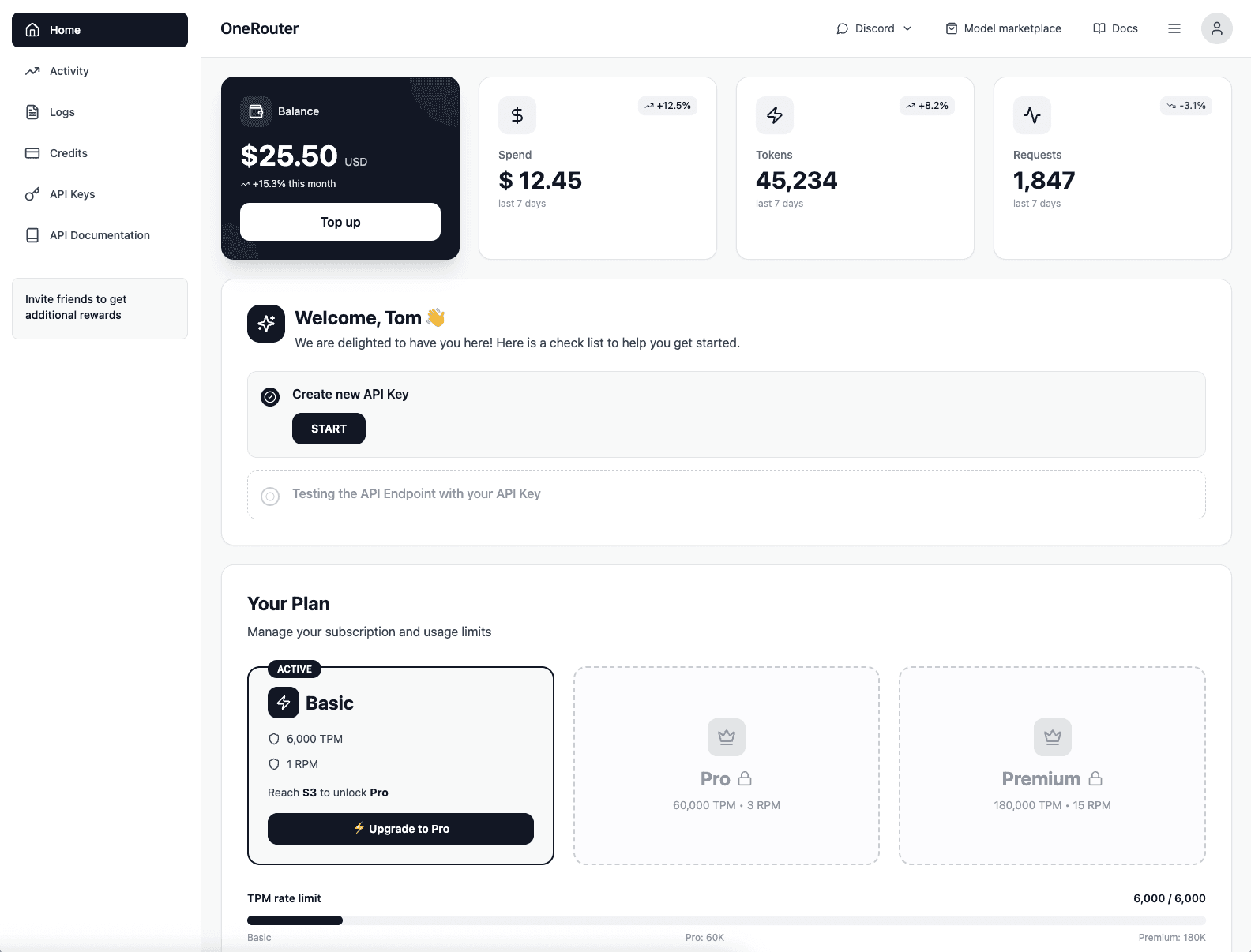
Scale without limits
Seamlessly integrate OneRouter with just a few lines of code and unlock unlimited AI power.
Scale without limits
Seamlessly integrate OneRouter with just a few lines of code and unlock unlimited AI power.